 Marukit
Guide
How to Make Your Photo Fit as a WhatsApp DP
WhatsApp shows your profile photo as a circle, so the corners and edges get cut off. Here's how to frame it properly, or make a whole photo fit, in a few taps.
Updated · 2 min read
Why WhatsApp cuts off your photo
Profile photos are stored as a square and shown as a circle. A tall photo is first cropped to a square (losing the top and bottom), then the corners disappear in the circle. If your face isn't in the middle, it gets cut.
Frame your DP perfectly
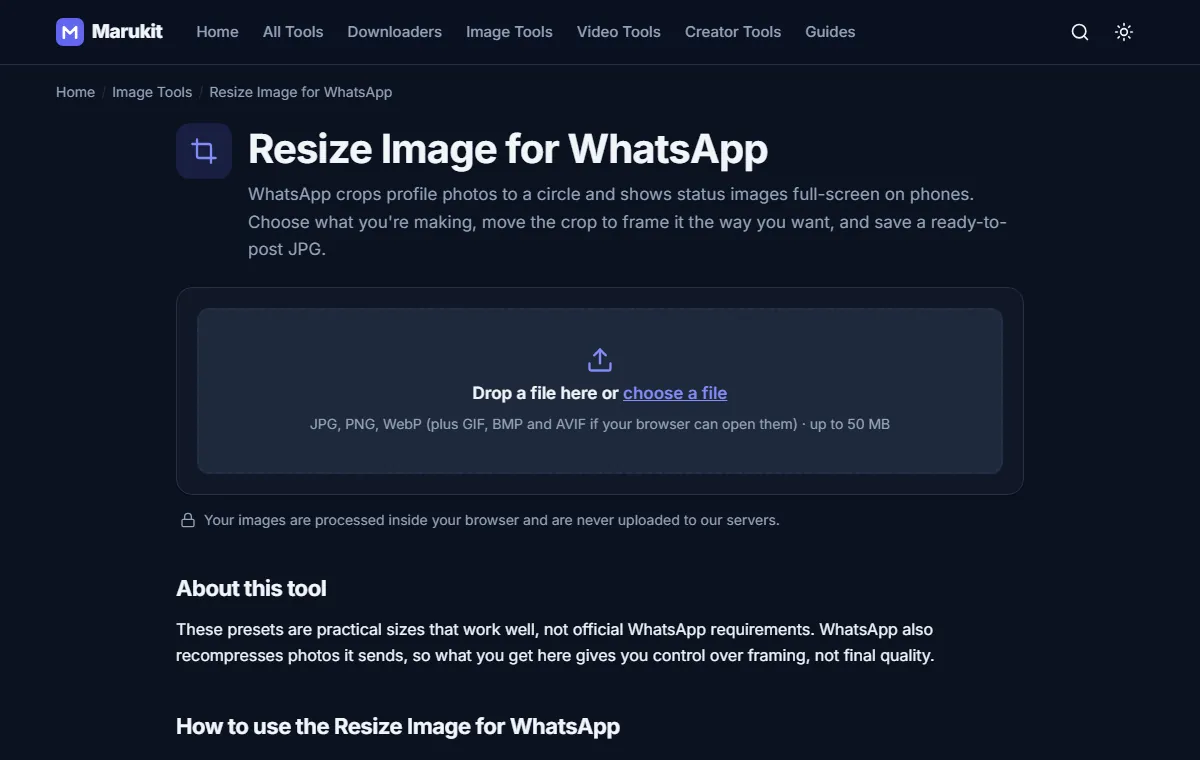
- Open Resize Image for WhatsApp and choose your photo. It stays on your device.
- Select Profile photo. A circle preview shows exactly what will be visible.
- Use the Move left / right and Move up / down sliders until your face sits in the middle of the circle.
- Press Save image and download the 640 × 640 JPG.
- In WhatsApp, open Settings, tap your photo, then Edit and choose the new image. Don't zoom when WhatsApp asks you to move and scale.
Want the whole photo to show?
A circle can never show a full rectangular photo, but you can make it fit with space around it. Use the Image Resizer: choose 1080 × 1080 and Fit inside. The whole picture fits within the square. Leave some room around the edges so the circle doesn't clip the corners.
Status photos
For a WhatsApp Status, choose Status (9:16) in the same tool. It makes a full-screen vertical 1080 × 1920 image, so nothing important is cropped on phones.
WhatsApp recompresses photos it sends. Starting with a clean, correctly sized JPG gives the sharpest result.
Try the Resize Image for WhatsAppFrame profile photos and status images before you post. Free, no signup.Open toolFrequently asked questions
What size is a WhatsApp DP?
WhatsApp doesn't publish an official size. 640 × 640 pixels is sharp on phone screens and keeps the file small.
Can other people see the square corners?
No. Everyone sees the circle, so anything in the corners is hidden.
Tools in this guide
More guides
- How to Download TikTok Videos Without Watermark
- How to Download Instagram Reels (iPhone, Android, PC)
- How to Compress an Image to 100KB Without Losing Too Much Quality
- How to Compress a Video for WhatsApp
- HEIC vs JPG: Which Should You Use, and How to Convert
- Best Video Sizes for Social Media (TikTok, Reels, Shorts and More)
- How to Convert MOV to MP4 (Windows, Mac and iPhone)
- How to Convert PNG to WebP for a Faster Website
- How to Reduce Video Size on Your Phone (iPhone and Android)