 Marukit
Guide
How to Download Facebook Videos (iPhone, Android, PC)
Facebook's Save button only keeps a video inside the app, and most videos have no option to save them to your phone. Here's how to download a public Facebook video or Reel as a normal MP4 file using just its link, with no app to install.
Updated · 4 min read
Why download instead of tapping Save?
Facebook's own Save option only adds a video to your Saved list. Saved videos stay inside the app, not on your phone, so you can't watch them offline, edit them or send them as a file, and they're gone if the post is deleted. Downloading gives you a real MP4 that stays on your device.
What you can and can't download
- Works: public videos and Reels from Pages, public profiles and public groups (as long as the video opens without logging in), using the full link that has the video's number in it.
- Doesn't work: posts shared with Friends only, videos in private groups, and anything else Facebook only shows to people who are logged in.
- Only download videos you made or have permission to use, and credit the creator if you share them.
Step 1: Copy the video link in the Facebook app
- Open the video or Reel in the Facebook app.
- Tap Share. On a normal video it's under the post; on a Reel it's the arrow on the right side.
- Tap Copy link.
Now look at the link you copied. If it has /reel/ or /videos/ followed by a long number, or watch/?v=, it's ready. Links from the app often look like facebook.com/share/... or fb.watch/... instead. Try pasting it as it is first. If Marukit can't open it, paste that link into your browser's address bar and open it. When the video loads, the address should change to the full link with the video's number. Copy that address and use it in Step 2.
On a PC or Mac: copy the link from the Facebook website
Open the video on facebook.com and copy the address from the address bar. It should have /reel/ or /videos/ followed by a number, or watch/?v=. If the address opens a whole post with text and photos, click the video to open it on its own first, then copy that link.
Step 2: Paste the link into Marukit
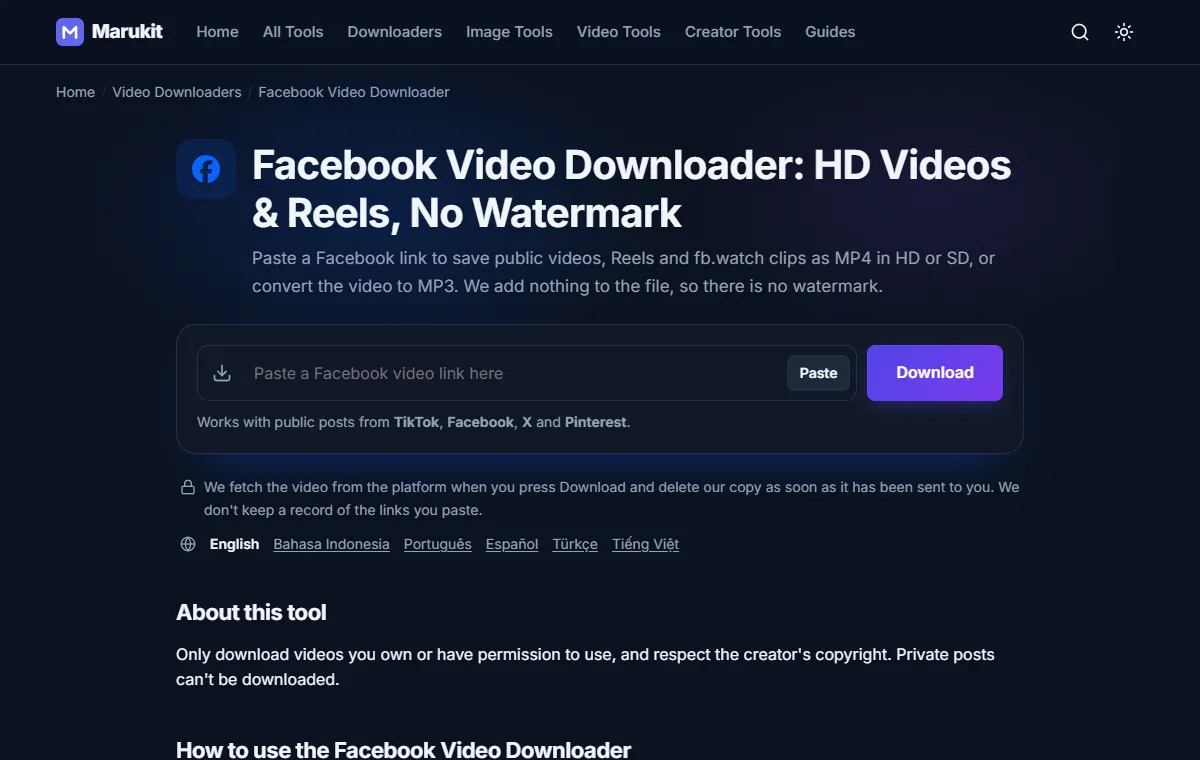
- Open the Facebook Video Downloader in Safari, Chrome or any other browser.
- Tap Paste. If your browser asks to read the clipboard, allow it. Or paste the link into the box yourself (long-press and Paste, or Ctrl+V on a computer); it starts on its own.
- Wait a few seconds while it says Fetching video.... You'll then see the video's title, who posted it and how long it is.
Step 3: Choose HD, a smaller size or MP3
- MP4 (best quality) saves the sharpest version Facebook has, usually the HD one.
- Smaller sizes such as MP4 720p HD, MP4 480p or MP4 360p are listed when Facebook has them. Lower quality, but quicker to download and easier to send.
- MP3 (audio only) keeps just the sound. If you already have the video file, Video to MP3 does the same from the MP4.
You'll see Preparing your video... (or Converting to MP3... for audio). This can take up to a minute. When the file starts arriving, the message changes to Download started! Check your Downloads folder.
Where the video goes on iPhone, Android and PC
- iPhone: confirm the download in Safari. The video is in the Files app under Downloads. To add it to your camera roll, open it, tap Share, then Save Video.
- Android: it's in your Downloads folder. Open the Files or Downloads app; most gallery apps also show it in a Downloads album.
- Windows or Mac: it's in your Downloads folder. The file name starts with Marukit_ followed by the video's title.
Live videos
A live video that is still streaming isn't a finished file yet. Wait until the broadcast has ended and the replay is posted publicly, then copy its link. Very long replays (over about an hour) are refused with This video is too long to download here.
If the download doesn't work
- "Couldn't fetch this video right now. Please try again in a moment." This is the message you'll see most often, and it doesn't always mean Facebook is busy. Check three things: if it's a short /share/ or fb.watch link, swap it for the full address (see Step 1); it's one video, not a Page, profile or group; and the video is public. Open the link in a private browser window: if Facebook asks you to log in, the video is Friends-only or in a private group, and trying again won't help. If all three are fine, wait a minute and try again.
- "This post is private or needs a login, so it can't be downloaded." Facebook only shows this video to people who are logged in, such as Friends-only posts, private groups and most Stories. It can't be downloaded.
- "No video was found in this post." The link points to a photo or text post. Open the video itself and copy that link.
- "Video not found. It may have been deleted. Check the link." The video was removed, or part of the link got cut off when you copied it.
Video too big to send on WhatsApp? Run the downloaded MP4 through Compress Video for WhatsApp, or read how to compress a video for WhatsApp.
Try the Facebook Video DownloaderDownload public Facebook videos and Reels in HD or SD. Free, no signup.Open toolFrequently asked questions
How do I save a Facebook video to my iPhone camera roll?
Download it in Safari, then open Files › Downloads, tap the video, tap Share and choose Save Video. It then shows up in Photos like any other video.
Can I download Facebook videos without an app?
Yes. Marukit works in your phone's browser (Safari or Chrome) and on any computer, with nothing to install and no Facebook login.
What if my facebook.com/share or fb.watch link doesn't work?
Short links don't include the video's number, and Facebook doesn't always reveal where they lead. Open the link in your browser, wait for the video to load, then copy the full address with /reel/ or /videos/ and a number.
Can I download a Facebook video without the link?
No. The tool needs the link to one video. Copy it with Share › Copy link, or from the address bar on a computer, and make sure it's the full link with the video's number.
Tools in this guide
More guides
- How to Download TikTok Videos Without Watermark
- How to Download TikTok Audio as MP3 (iPhone, Android, PC)
- How to Download Twitter (X) Videos on iPhone, Android and PC
- How to Download Pinterest Videos to Your Phone or PC
- How to Compress an Image to 100KB Without Losing Too Much Quality
- How to Compress a Video for WhatsApp
- HEIC vs JPG: Which Should You Use, and How to Convert
- Best Video Sizes for Social Media (TikTok, Reels, Shorts and More)
- How to Convert MOV to MP4 (Windows, Mac and iPhone)
- How to Convert PNG to WebP for a Faster Website
- How to Reduce Video Size on Your Phone (iPhone and Android)
- How to Make Your Photo Fit as a WhatsApp DP
- How to Download a YouTube Thumbnail in HD (iPhone, Android, PC)